Arabic Typing in Microsoft Word: Complete Shortcuts & Setup Guide
RTL shortcuts, Arabic font setup, harakat input, bilingual document formatting — everything you need for professional Arabic documents in Word.
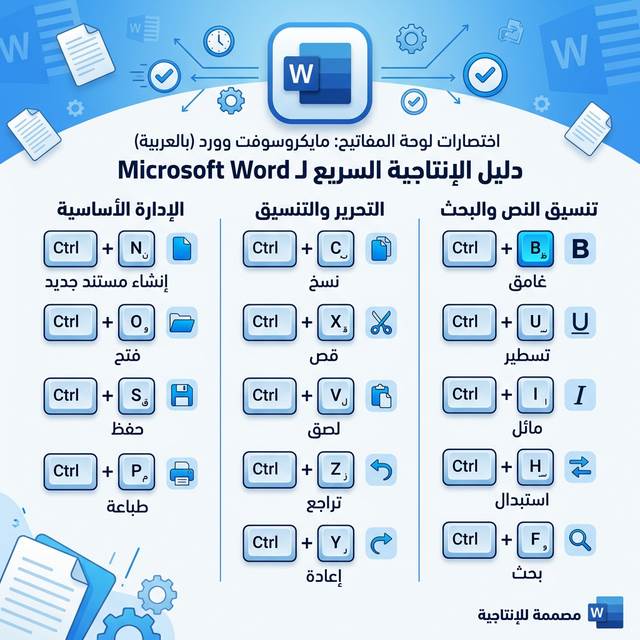
Microsoft Word has the most complete Arabic word processing features of any mainstream software — but many users never discover these capabilities. This guide covers all the keyboard shortcuts, formatting settings, and features that make Arabic document creation in Word fast and professional, from initial setup to advanced bilingual formatting.
Initial Setup: Enabling Arabic in Word
- Go to File → Options → Language
- Under "Office authoring languages and proofing," click Add a Language
- Search for and add Arabic (Saudi Arabia) or the Arabic variant you use
- Click Set as Preferred if Arabic is your primary language, or leave English preferred for bilingual use
- Restart Word if prompted
Adding Arabic enables: Arabic spellcheck, RTL paragraph direction controls, Arabic grammar checking, and Arabic date formats.
Essential Arabic RTL Shortcuts in Word
| Shortcut | Action |
|---|---|
| Ctrl + Right Shift | Set current paragraph(s) to RTL (Right-to-Left) |
| Ctrl + Left Shift | Set current paragraph(s) to LTR (Left-to-Right) |
| Right Shift | Start typing in RTL mode within the current line |
| Left Shift | Start typing in LTR mode within the current line |
| Alt + F10 | Show/hide BiDi formatting marks |
Arabic Font Recommendations for Word
| Font | Style | Best For | Pre-installed |
|---|---|---|---|
| Traditional Arabic | Classical Naskh | Formal documents, letters | Yes (Windows) |
| Simplified Arabic | Clean modern | Business reports | Yes (Windows) |
| Arabic Transparent | Minimal | Forms, small text | Yes (Windows) |
| Geeza Pro | Modern | General (macOS) | Yes (macOS) |
| Amiri | Classical serif | Academic, Quran | No (free download) |
| Cairo | Modern sans | Modern reports, slides | No (free download) |
Setting Up an Arabic Document Template
For a Pure RTL Arabic Document:
- Open a new blank document
- Press Ctrl + A to select all (even if empty)
- Press Ctrl + Right Shift to set document default to RTL
- Go to Home tab → Paragraph group → click Right Align (or press Ctrl+R)
- Set font to your preferred Arabic font and appropriate size (14pt body, 18pt heading)
- Save as a .dotx template (File → Save As → Word Template) for reuse
For Bilingual Arabic/English Documents:
Each paragraph in Word has its own direction. Strategy for bilingual documents:
- Arabic paragraphs: use Ctrl+Right Shift to set RTL
- English paragraphs: use Ctrl+Left Shift to set LTR
- Within a paragraph, the cursor direction flips when you switch language input
- Numbers in Arabic text: Arabic uses Western numerals (1234) for most business content, or Eastern Arabic (١٢٣٤) for formal/government documents
Arabic Spellcheck in Word
After adding Arabic language (from setup above), Word's spellcheck automatically recognizes Arabic text and underlines errors in red. To manually trigger:
- F7 — Run full document spell check
- Right-click a red-underlined Arabic word for correction suggestions
- To disable Arabic spellcheck for a selection: select text → Review → Language → Select Language → Check "Do not check spelling or grammar"
Inserting Arabic Special Characters
For Arabic characters not on the keyboard, use Word's Symbol dialog:
- Insert → Symbol → More Symbols
- Change the font to an Arabic font
- Change subset to "Arabic" or "Arabic Presentation Forms-A"
- Select the character and click Insert
Or type the Unicode code point + Alt+X to insert directly: e.g., type 0641 then Alt+X to
get ف
Arabic Heading Styles in Word
To create consistent Arabic headings with proper RTL:
- Modify the default Heading 1-3 styles (right-click → Modify style)
- In Format → Paragraph: set alignment to Right and Direction to RTL
- Set Arabic font for the heading style
Once done, applying Heading 1/2/3 automatically formats in RTL with your Arabic font.
⌨ Type Arabic and Paste into Word
Our web keyboard copy-pastes perfectly into Word with correct RTL.
Open Arabic KeyboardFrequently Asked Questions
This means the current font does not support Arabic characters. Solution: select the affected text and change its font to an Arabic-compatible font such as "Traditional Arabic," "Simplified Arabic," or "Amiri." This is a common issue when pasting Arabic text into a document that was created with a Latin-only font.
Yes. Word for Mac has full Arabic RTL support including the same keyboard shortcuts (Ctrl+Right Shift for RTL paragraph, Ctrl+Left Shift for LTR). The Arabic language options are added the same way: Tools → Language (or Preferences → Language). The macOS pre-installed Arabic fonts (Geeza Pro, Al Bayan) are automatically available in Word for Mac.
Select all text with Ctrl+A, then press Ctrl+Right Shift to set all selected paragraphs to RTL simultaneously. You can also change the default paragraph direction for a document permanently by modifying the "Normal" style (Ctrl+A, right-click → Style → Normal → Modify → Format → Paragraph → Right Alignment + RTL direction).